
Running multiple instances of Roblox means running more than one Roblox game or account on the same computer. Whether you are farming in a simulator, trading in limiteds, testing your own game, or using alt accounts, running multiple instances has become one of the most sought-after features in Roblox in 2026.
While Roblox allows you to log in to multiple accounts, it typically prevents more than one game from running simultaneously. To get around this, players use software or techniques that enable running multiple windows safely.
Running multiple Roblox accounts in 2025 has never been easier. Whether you are using MultiBloxy, Process Explorer, WeAreDevs, Roblox Launcher, or emulators, you can run an unlimited number of Roblox games on the same PC. This guide will walk you through all the working techniques in 2026, step by step, with pros and cons and troubleshooting information.
What Is “Multiple Roblox” or Multi-Instance?
Multiple Roblox means running two or more Roblox game clients at the same time on a single device. People use multi-instance for:
- Trading on alts
- AFK farming
- Sitting in queues on one account while playing on another
- Game development testing
- Moderation and admin duties
- Recording two characters for YouTube videos
Is Running Multiple Roblox Accounts Allowed in 2025?
Yes it is allowed to run multiple Roblox Accounts in a Same PC, as long as you are not using exploits or memory modifications.
Safe methods include:
- ✔ Process Explorer
- ✔ MultiBloxy
- ✔ Bloxstrap multi-instance
- ✔ Roblox Launcher trick
- ✔ Emulators
Unsafe methods include:
- ❌ Programs that inject DLLs
- ❌ Exploit tools disguised as “multi Roblox”
- ❌ Anything modifying Roblox game memory
Stick to the trusted tools mentioned below.
Method 1: MultiBloxy Roblox Multi-Instance (Best & Easiest Multi-Instance Tool)
Multi Bloxy Roblox Multi-Instance is currently one of the most popular and reliable multi-instance tools. It works perfectly with the latest Roblox versions and doesn’t require installation.
How to Use MultiBloxy?
- Download MultiBloxy (trusted community tool) by clicking the Download button above.
- Launch the program
- Click “Allow Multiple Instances”
- Open Roblox normally
- Log in with your first account
- Open Roblox again for your second account
- Repeat for unlimited instances
Pros
- Easy and beginner-friendly
- No installation required
- Works with any PC
- Supports unlimited accounts
- No exploits or injections
Cons
- Needs to be reactivated if Roblox updates
Method 2: Process Explorer Roblox Multiple (Microsoft Official & 100% Safe)
This method uses Microsoft’s Process Explorer, which is completely safe and does not modify Roblox files.
Steps
- Download Process Explorer from Microsoft or simplay by clicking the above Download Button .
- Launch Roblox game #1
- Open Process Explorer
- Find:
RobloxPlayerBeta.exe - Right-click → Close Handle
- Now open Roblox game #2
- Repeat as many times as you want
Watch the video >here to run the tool
Pros
- 100% safe
- No downloads except Microsoft’s tool
- Works even after Roblox patches
Cons
- Slightly technical
- Must repeat steps for each new instance
Method 3: WeAreDevs Tool for Multiple Roblox Games
WeAreDevs Multiple Roblox tool allows unlimited Roblox windows by bypassing the default restriction.
Steps
- Click the above link to Download the WeAreDevs Multipal Roblox tool
- Open Roblox
- Keep launching new instances
Pros
- Easy to use
- Very fast
- Unlimited accounts
Cons
- Antivirus may flag it because it modifies processes
- Not open-source
Only download from the official WeAreDevs site.
Method 4: Roblox Launcher + Browser Login Trick
Run multipal Roblox accounts on same pc. This method is very simple and works without any tools.
Steps
- Install the Roblox desktop app
- Log in with Account 1 inside the app
- Open your browser
- Log in to Account 2 on the Roblox website
- Join a game in the app
- Join a different game in the browser
Pros
- Very easy
- No downloads
- Safe
Cons
- Works for only two accounts
- Roblox sometimes automatically closes one instance
Method 5: Emulators (LDPlayer, BlueStacks)
Run multiple Roblox accounts on same PC using an Android emulator lets you run Roblox simultaneously on:
✔ Your PC
✔ The emulator
Some people run 5–15 accounts this way.
Steps
- Install LDPlayer or BlueStacks
- Install Roblox inside the emulator
- Log in with your alt accounts
- Run more instances using multi-instance manager
Pros
- Unlimited accounts
- Works great for AFK farming
- Can run accounts in the background
Cons
- Requires strong RAM & CPU
- Emulator setup takes time
Comparison Table: Best Multi-Roblox Methods
Method
- MultiBloxy
- Process Explorer
- WeAreDevs
- Roblox Launcher
- Emulators
Difficulty
- Easy
- Medium
- Easy
- Very Easy
- Medium
Accounts
- ⭐⭐⭐⭐
- ⭐⭐⭐⭐⭐
- ⭐⭐⭐
- ⭐⭐⭐⭐⭐
- ⭐⭐⭐⭐
Supported
- Unlimited
- 5–10
- Unlimited
- 2
- 10+
Best For
- Most users
- Safe, official method
- Fast setup
- New players
- AFK farming
Fix: Multiple Roblox Not Working
✔ 1. Turn Off Auto-Close Instances
- Some Roblox updates auto-close secondary windows. Use MultiBloxy or Process Explorer to bypass it.
✔ 2. Clear Roblox Cache
- Press Win + R
- Type %localappdata%\Roblox
- Delete the Cache folder
✔ 3. Disable Bloxstrap “Single Instance Lock”
- In Bloxstrap settings, uncheck Force client to single instance.
✔ 4. Run MultiBloxy as Administrator
- Fixes permission issues.
✔ 5. Update Roblox
- Old versions often break multi-instance.
Advanced Tip: Best Settings for Low-End PCs
- Lower graphics to Level 1
- Limit framerate
- Close background apps
- Run each Roblox window in Windowed Mode
- If using emulators, use LDPlayer 32-bit
How to make multiple admins on a Roblox game?
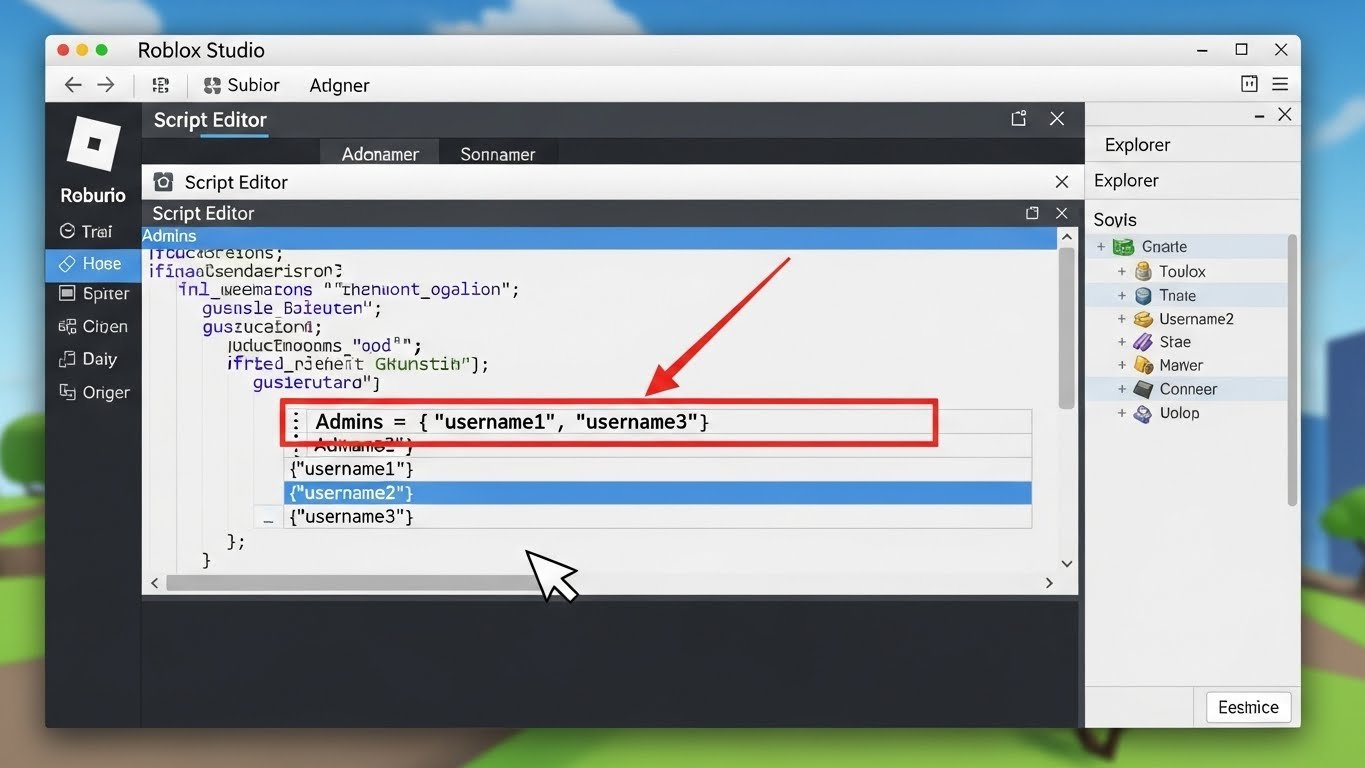
You can give admin powers to multiple players using an admin script such as HD Admin, Kohl’s Admin, or Adonis Admin.
Steps:
- Open Roblox Studio and your game.
- Go to Toolbox → Models and search for HD Admin.
- Insert it into StarterPlayer or ServerScriptService.
- Open the admin script settings.
- Add the UserIDs of all players you want to make admins.
- Example: {12345678, 98765432, 19283746}
- Save and publish your game.
- All added users will automatically receive admin privileges whenever they join the game.
How to have multiple people making a Roblox game
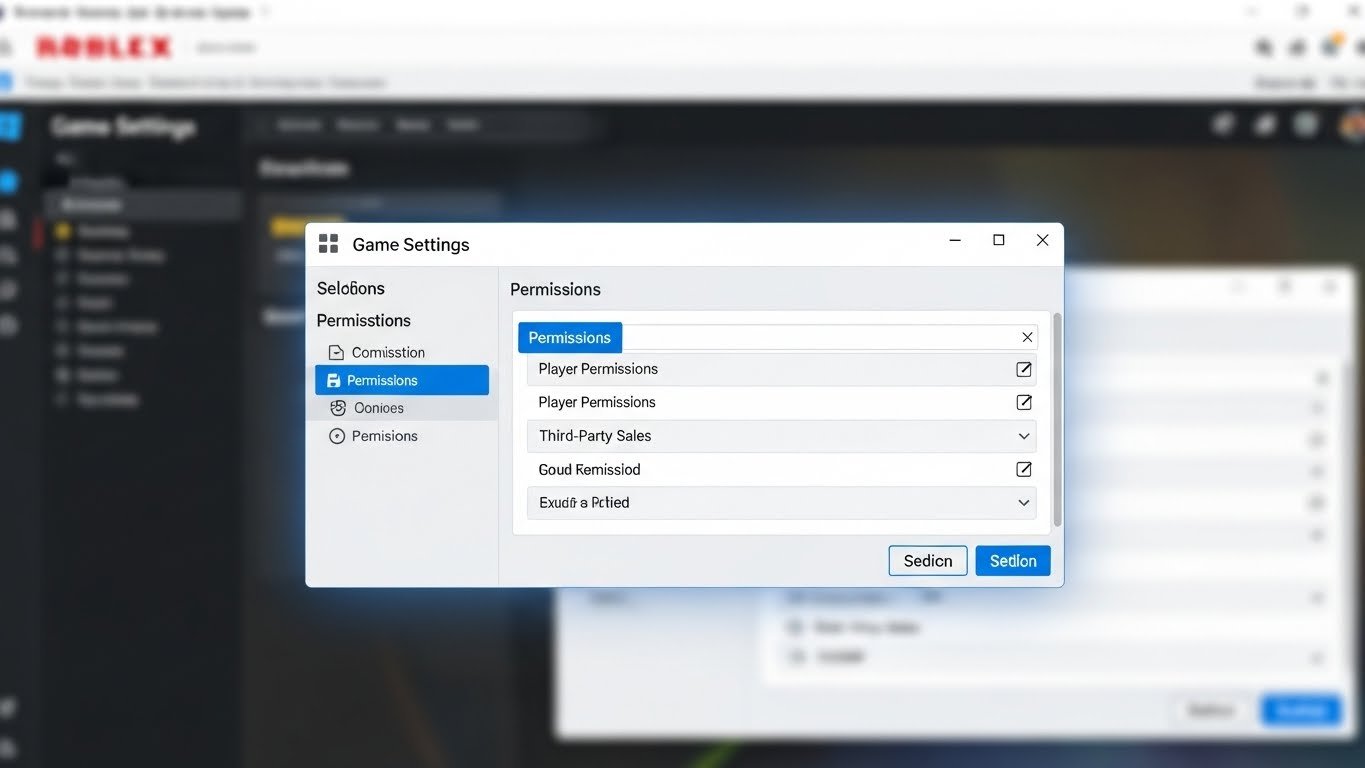
Roblox allows multiple developers to work on the same project using Team Create and Game Permissions.
Steps:
- Open your game in Roblox Studio.
- Go to Home → Game Settings → Permissions.
- Add the usernames of people you want to collaborate with.
- Choose their role:
- Editor (they can build and script)
- Play Tester (can test only)
- Enable Team Create so everyone can edit at the same time.
This allows real-time collaboration just like Google Docs.
How to play on multiple players on Roblox Studio?
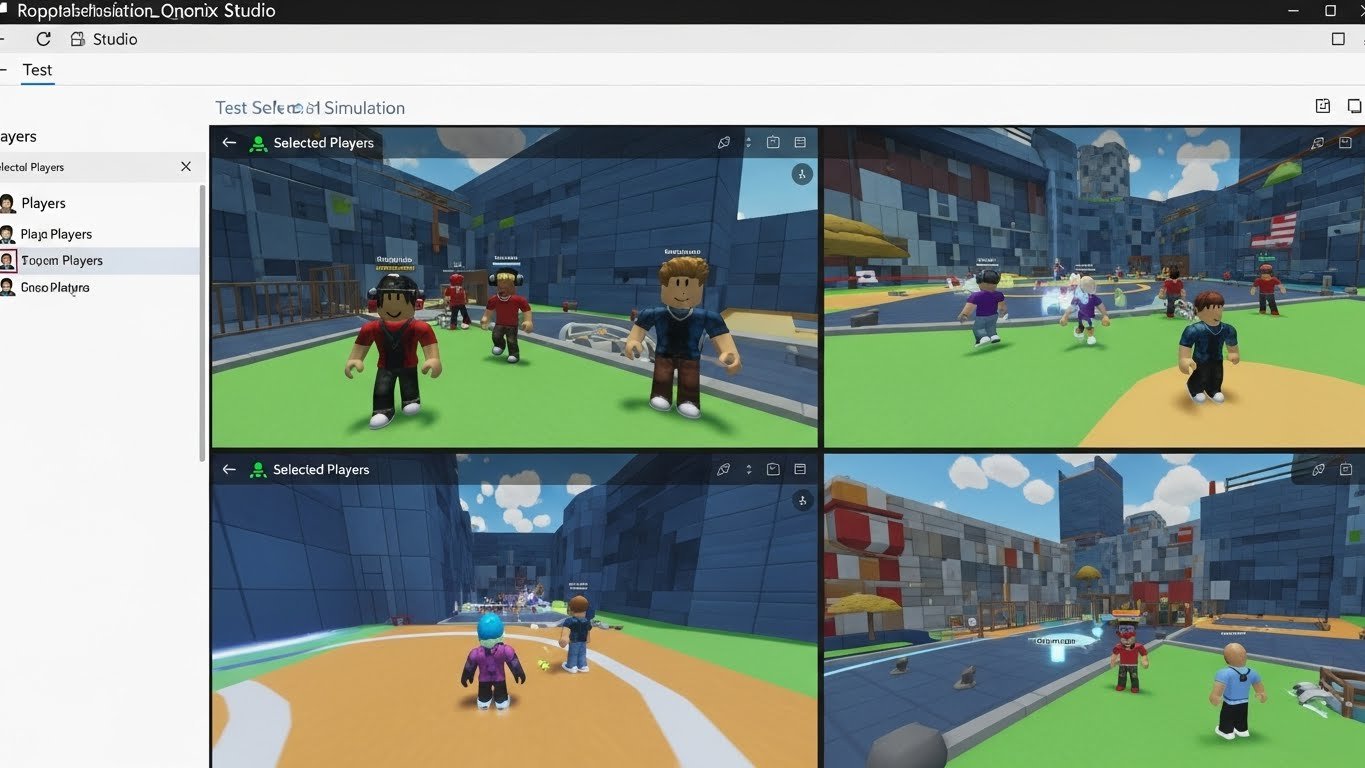
You can test multiplayer gameplay directly from Studio by opening several player windows at once.
Steps:
- Open your game in Studio.
- Go to the Test tab.
- Choose how many players you want: 2, 3, 4, etc.
- Click Start.
Studio will open multiple client windows so you can test:
- Player interactions
- Combat systems
- Leaderboards
- Multiplayer scripts
- Server behavior
It’s the best way to test if your game works with multiple users.
How to upload multiple decals at once on Roblox?

Roblox does not offer a true bulk upload button for decals, but you can use Asset Manager → Bulk Import to upload several images quickly.
Steps:
- Open View → Asset Manager.
- Click the Bulk Import button.
- Select all the image files you want to upload.
- Roblox will process them one by one automatically.
You still need to wait for moderation, but this method saves a lot of time compared to uploading manually.
How to use Roblox Account Manager for multiple accounts?
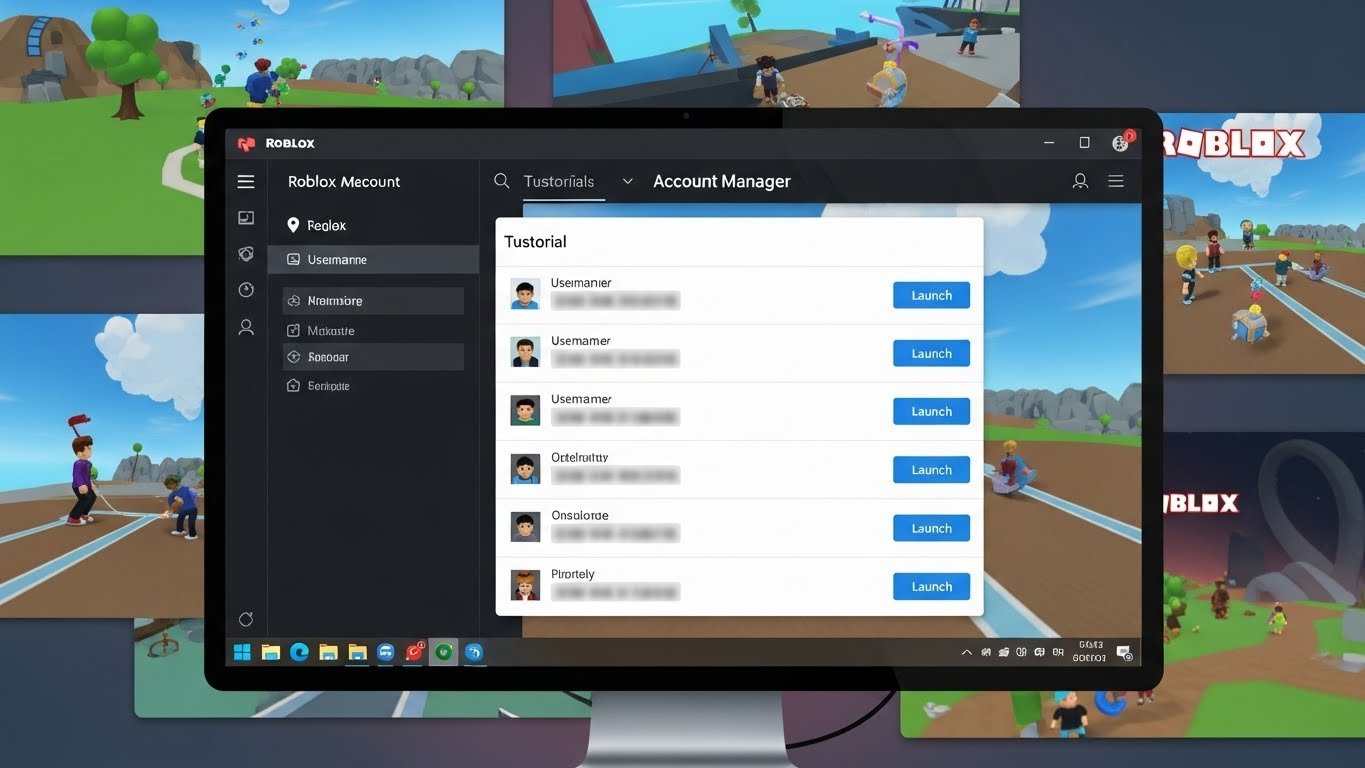
A Roblox Account Manager helps users manage two or more Roblox accounts without logging in and out constantly.
How it works:
- Download a trusted open-source account manager tool.
- Add your Roblox account details or cookies.
- Save sessions inside the manager.
- Switch between accounts with a single click.
- You can run multiple Roblox windows (instances) for:
- Trading
- AFK farming
- Managing alt accounts
- Testing multiplayer setups
Always avoid sketchy or unknown tools—use only verified and safe ones.
How to Play on Multiple Players on Roblox Studio?
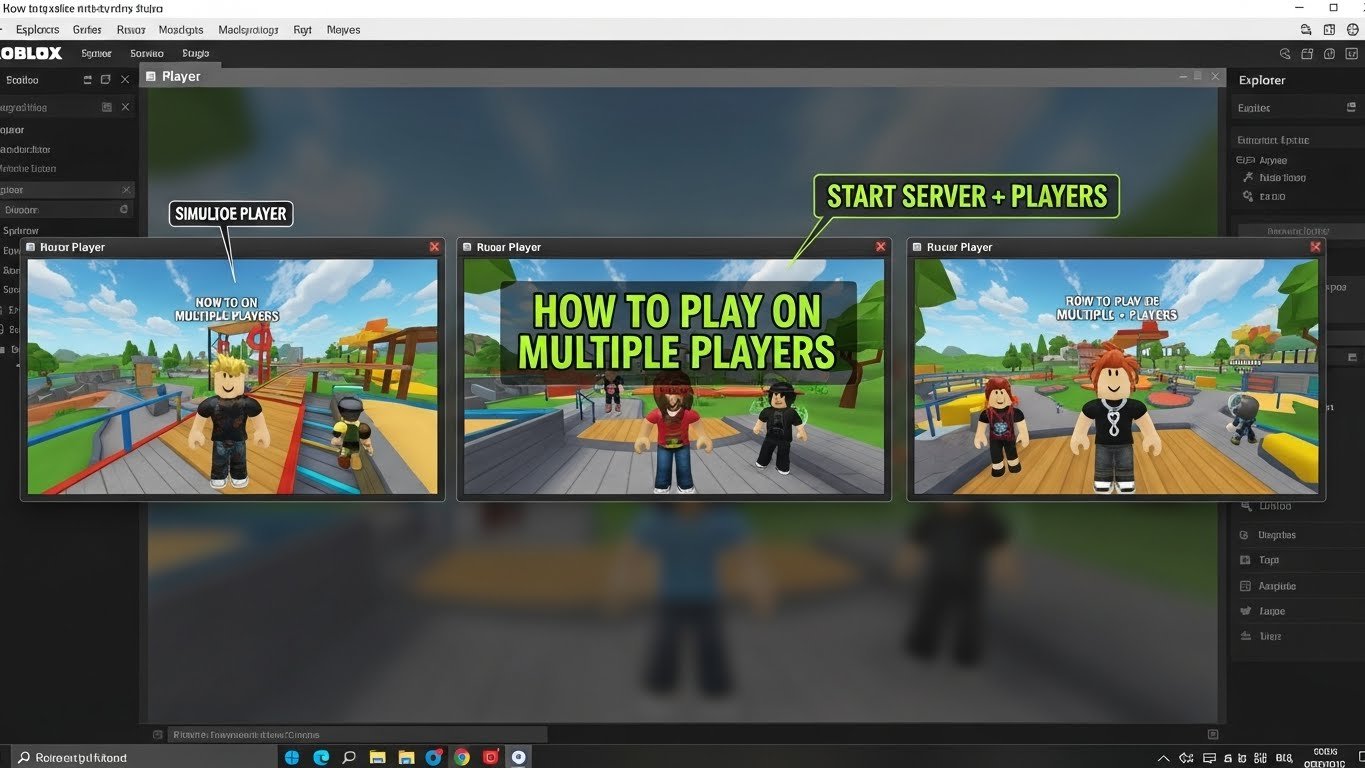
Roblox Studio allows you to test your game with multiple players to simulate multiplayer gameplay. This is useful for testing scripts, leaderboards, combat systems, or collaborative features before publishing your game.
Steps to play with multiple players:
- Open your game in Roblox Studio – Launch Studio and open the project you want to test.
- Go to the Test tab – At the top of Studio, click on the Test tab.
- Select the number of players – In the Test settings, choose how many players you want to simulate (2, 3, 4, etc.).
- Click Start – Studio will open multiple player windows, each acting as a separate player.
- Observe interactions – You can now see how players interact with each other, test multiplayer scripts, and check for errors in gameplay.
Tips:
- For more than a few players, ensure your computer has enough RAM and CPU power to handle multiple windows.
- Each simulated player runs in its own window, so you can control and test them independently.
Use this feature to test team games, leaderboards, or combat systems.
FAQs (Frequently Asked Questions)
Q1: Can you get banned for using multi Roblox?
No, you will not get banned for simply running multiple Roblox instances, as long as you are not using any exploit programs or modifying the game’s memory. Roblox allows players to log into multiple accounts, and multi-instance tools only help you open more than one game window at a time. As long as you avoid exploit injectors or cheating software, multi-Roblox usage is completely safe.
Q2: Why does Roblox close my second instance?
Roblox automatically enforces a single-instance mode, which means it closes any additional game windows you try to open. This is part of Roblox’s default behavior to prevent multiple clients from running at once. You can bypass this restriction by using tools like MultiBloxy or Process Explorer, which safely allow multiple game instances to stay open at the same time.
Q3: What is the best multi-Roblox tool in 2025?
The most reliable tools for running multiple Roblox windows in 2025 are MultiBloxy and Process Explorer. MultiBloxy is easy for beginners and works with just a single click, while Process Explorer is an official tool from Microsoft that offers a very safe way to open multiple instances. Both methods are trusted and work consistently with the latest Roblox updates.
Q4: How many Roblox windows can my PC handle?
The number of Roblox windows you can run depends entirely on your computer’s hardware—mainly the CPU and available RAM. A system with 8GB of RAM can usually handle around 2 to 4 instances comfortably, while a PC with 16GB can run between 5 and 10 instances. High-end setups with 32GB of RAM or more can often handle 10 or more Roblox windows without performance issues.